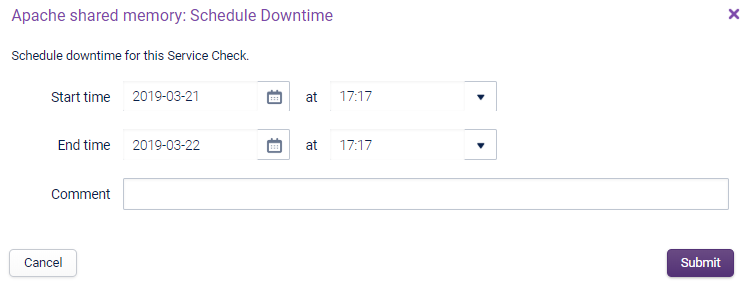
Scheduling Downtime
You can schedule downtimes for Host Groups, Hosts and Service Checks from the Monitoring > Navigator page.
When a host is in downtime (active or scheduled), any new service checks added to the host will not be in downtime. This also applies to the following:
- Service checks added via host templates already applied to the host.
- Host templates added to a host currently in downtime.
To ensure downtime applies to the new service checks, you can do any of the following:
- Cancel and re-schedule the host’s downtime.
- Wait for the current downtime to end and then schedule downtime for the new checks manually.
For Host Groups Copied
By scheduling a downtime against a Host Group, you are scheduling a downtime for all the Hosts and their Service Checks within that Host Group. Notifications will not be sent out if anything in that Host Group for any possible failure during the set time period.
In Monitoring > Navigator, locate the Host Group for which you wish to schedule a downtime, click on the contextual menu for the given Host Group and select Schedule Downtime:
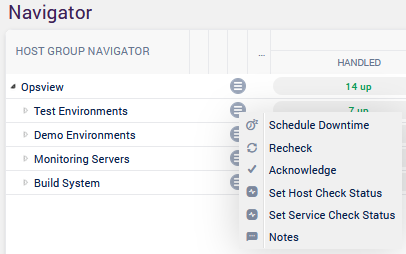
First, set the start/end date and time during which you are expecting to carry some maintenance on your infrastructure.
The Downtime page provides two ways to schedule downtime: Status Based Selection and General Selection. Each tab offers different methods for selecting hosts and service checks to place into downtime.
Status Based Selection Copied
The Status Based Selection tab allows you to schedule downtime based on the current status of hosts or service checks.
You can choose to set downtime in the following ways:
-
Select service checks one by one and schedule downtime only for those specific checks.
-
Schedule downtime based on status, for example placing only service checks in a
CRITICALstate intoDOWNTIME. -
Optionally, you can schedule downtime for all hosts and all service checks. This action places the entire environment into a
DOWNTIMEstate.
General Selection tab Copied
The General Selection tab allows you to schedule downtime by manually selecting hosts, service checks, or a combination of both.
Selection behavior is dynamic:
- When one or more hosts are selected, the Service Checks list is automatically filtered to show only service checks associated with those hosts.
- When service checks are selected first, the Host dropdown displays only the hosts that contain those service checks.
Button availability depends on your selections:
- If only the Host selection box is populated, both Add Hosts and Add Service Checks buttons are enabled.
- If both Host and Service Check selection boxes are populated, only the Add Service Checks button is enabled.

Add Hosts Copied
The Add Hosts button adds one or more selected hosts to the downtime list.
- Only host objects are explicitly added.
- All service checks associated with each selected host are automatically included and affected by the scheduled downtime.
This button is disabled when:
- No host is selected from the dropdown, or
- Both a host and one or more service checks are selected.
Add Service Checks Copied
The Add Service Checks button behaves as follows:
- If no specific service checks are selected, all service checks associated with the selected host are added to the downtime list.
- If one or more service checks are selected, only those specified service checks for the selected host are added.
This button is disabled when no host is selected.

Filtering the downtime list Copied
The Filter field allows you to refine the entries displayed in the table.
- Filtering applies across all columns:
HOST,SERVICE CHECK,STATUS, andSTATUS INFO. - Only rows matching the filter criteria are displayed.
- You can further refine the list by manually deleting rows.
- Only the visible rows in the table are submitted for downtime scheduling unless the filter is cleared.

Deleting entries Copied
Click Delete Row to remove a specific row from the downtime list.

For Hosts Copied
By scheduling downtime against a Host, you are scheduling a downtime for all the Service Checks within that Host, and also the Host Check Command itself. Notifications will not be sent out if failures occur during the set time period.
In Monitoring > Navigator, locate the Host for which you wish to schedule a downtime, click on the contextual menu for the given Host and select Schedule Downtime:
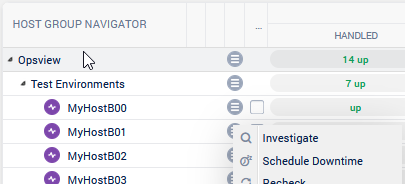
First, set the start/end date and time during which you are expecting to carry some maintenance on your infrastructure.
The Downtime page provides two methods for scheduling downtime: Status Based Selection and General Selection. Each tab offers a different approach for selecting hosts and service checks to place into downtime.
Status Based Selection Copied
The Status Based Selection tab allows you to schedule downtime based on the current status of service checks or hosts.
You can schedule downtime in the following ways:
-
Select service checks one by one and schedule downtime only for those specific checks
-
Schedule downtime based on status, for example applying
DOWNTIMEonly to service checks that are currently in aCRITICALstate. -
You can also schedule downtime for all hosts and all service checks. This action places the host and all associated service checks into a
DOWNTIMEstate.
General Selection Copied
The General Selection tab allows you to schedule downtime by selecting hosts, service checks, or a combination of both.
Button availability depends on the selections made:
- If only the Host selection box is filled, both Add Hosts and Add Service Checks buttons are enabled.
- If both the Host and Service Check selection boxes are filled, only the Add Service Checks button is enabled.
Add Hosts Copied
The Add Hosts button adds one or more selected hosts to the downtime list.
- Only the host objects are explicitly added.
- All service checks associated with each selected host are automatically included and affected by the scheduled downtime.
This button is disabled when:
- No host is selected from the dropdown, or
- Both a host and one or more service checks are selected.
Add Service Checks Copied
The Add Service Checks button behaves as follows:
- If no specific service checks are selected from the Service Checks dropdown, all service checks associated with the selected host are added to the downtime list.
- If one or more service checks are selected, only the specified service checks for the selected host are added.
This button is disabled when no host is selected from the dropdown.
Filtering the downtime list Copied
The Filter field allows you to refine the entries displayed in the table.
- Filters apply to all columns:
HOST,SERVICE CHECK,STATUS, andSTATUS INFO. - Once a filter is applied, only rows that match the criteria are displayed.
- You can further refine the list by deleting individual rows.
Only the visible rows in the table are submitted for downtime scheduling unless the filter is cleared.
Deleting entries Copied
Click Delete Row to remove a specific row from the table.
For Service Checks Copied
By scheduling downtime against a Service Check, you are scheduling a downtime an individual check for the selected Host. Notifications will not be sent out if failures occur during the set time period.
In Monitoring > Navigator, select a specific host and then go to the Checker area of the Navigator. Locate the Service Check for which you wish to schedule a downtime, click on the contextual menu for the given Service Check and select Schedule Downtime:
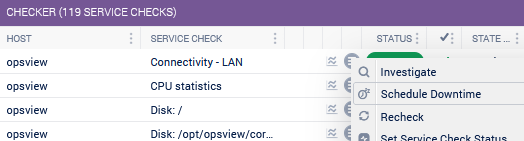
The only thing you need to do is to set the start/end date and time during which you are expecting to carry some maintenance on your infrastructure.