Scheduling Downtime for BSM Services and Components
You can schedule downtimes for BSM Services and BSM Components from the Monitoring > BSM Summary pages.
Scheduling downtime for a business service Copied
When you schedule downtime for a business service, the downtime applies to all Hosts and Service Checks within all Components that belong to that Business Service. During the downtime window, no notifications will be sent even if failures occur.
Follow these steps to schedule downtime.
- Go to Monitoring > BSM > Summary.
- Locate the Business Service you want to place in downtime.
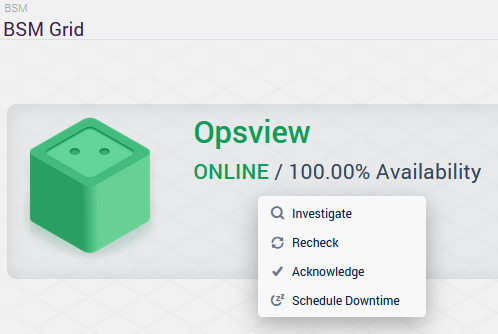
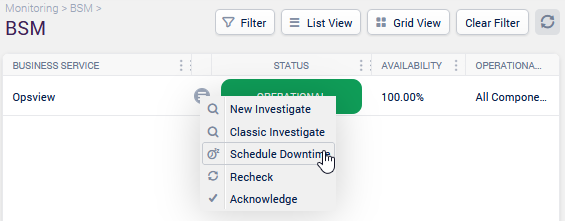
- Right-click the Business Service to open its context menu.
- Click Schedule Downtime.
From the Grid View Copied
From the List View (Classic mode) Copied
Downtime configuration tabs Copied
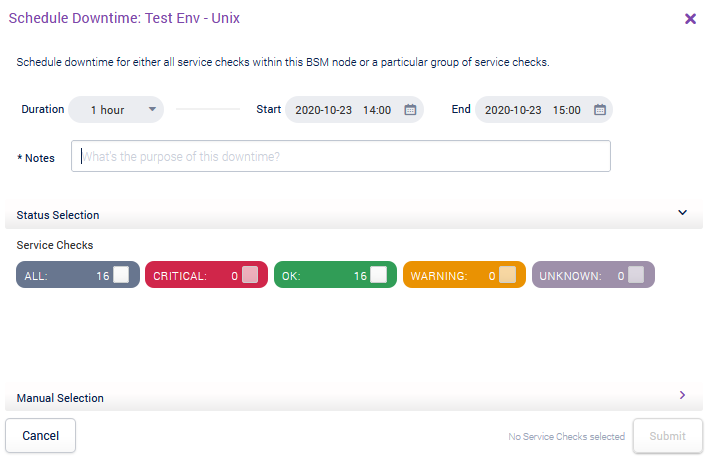
When scheduling downtime, two tabs are available: Status Based Selection and General Selection.
Status Based Selection Copied
Use this tab to set downtime based on the status of Service Checks.
- You can apply downtime to Service Checks depending on their current state (for example, only
CRITICALchecks). - The Manual selection section lets you choose specific Hosts, Service Checks, and statuses for downtime.

General Selection Copied
This tab is not currently supported for BSM.

Scheduling downtime for a component Copied
By scheduling downtime against a Component, you are scheduling a downtime for all the Service Checks within the Component. Notifications will not be sent out if failures occur during the set time period.
In Monitoring > BSM > Summary, go to the Investigate page for a given Business Service and then for the Component for which you wish to schedule a downtime, right click on the tile of the Component and select Schedule Downtime.
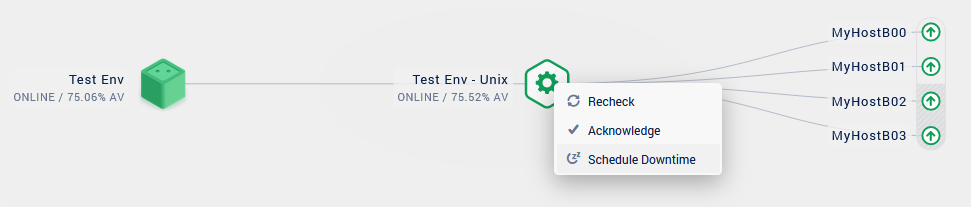
You can set a downtime on all the Service Checks of the Component by their state (for example, DOWNTIME on only CRITICAL Service Checks).
The Manual selection section allows applying a downtime on specific Hosts, Service Checks and Statuses.