Opsview 6.9.x End of Support
Opsview versions 6.9.x reached their End of Support (EOS) status at the end of January 2026, in accordance with our Support policy. As of this date, these versions no longer receive code fixes, security updates, maintenance releases, or backported changes.
The documentation for version 6.9.7 and earlier releases will remain accessible for reference, but it will no longer be updated or maintained. We strongly recommend upgrading to the latest supported version of Opsview to ensure continued support and access to the latest features and security enhancements.
Adding a Custom Logo
Custom logos can be added to Opsview Monitor’s Reports Module, allowing you to rebrand your reports with your or your customer’s company logo.
To add a new custom logo:
- Go to Monitoring > Reports.
- click View > Repository.
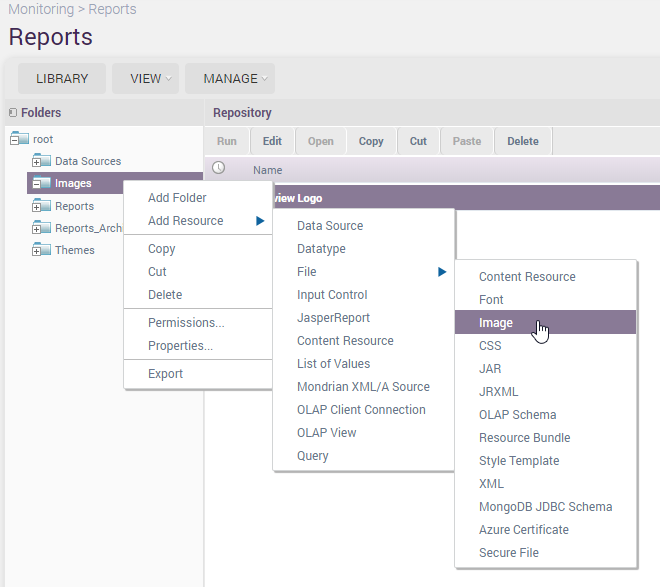
Once loaded, right-click on the Images folder, located in the navigation tree on the left, and click on Add Resource > File > Image, as shown below:
Once loaded, the screen below will be visible:
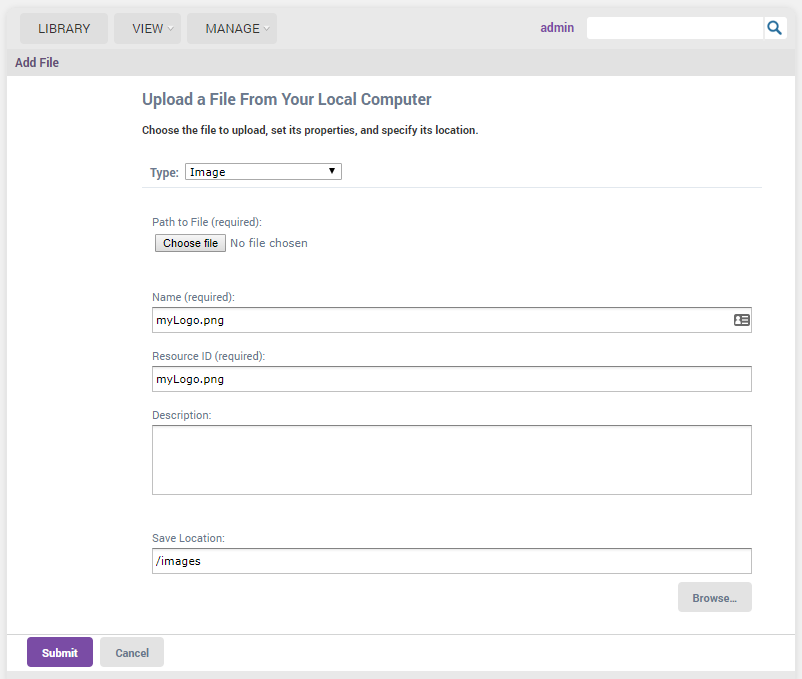
In the above example, we have added a new logo called ‘mylogo.png’. Then, click Submit and the new logo will be uploaded and saved.
To use this new logo, simply generate a report and change the logo field to /images/mylogo.png as below:

After clicking OK, a report with the new logo will be generated:
